SMBAct agent skills
SMBAct agent skills teach an AI agent to arrange your windows with SMBAct the right way. They are free and open source (MIT) on GitHub: GigLaboCom/smbact-skills. They follow the open Agent Skills format, so Claude Code, OpenAI Codex, Cursor, GitHub Copilot and Gemini CLI can all load them.
The skills do not move windows themselves. They act through SMBAct’s MCP server, which you turn on in the app.
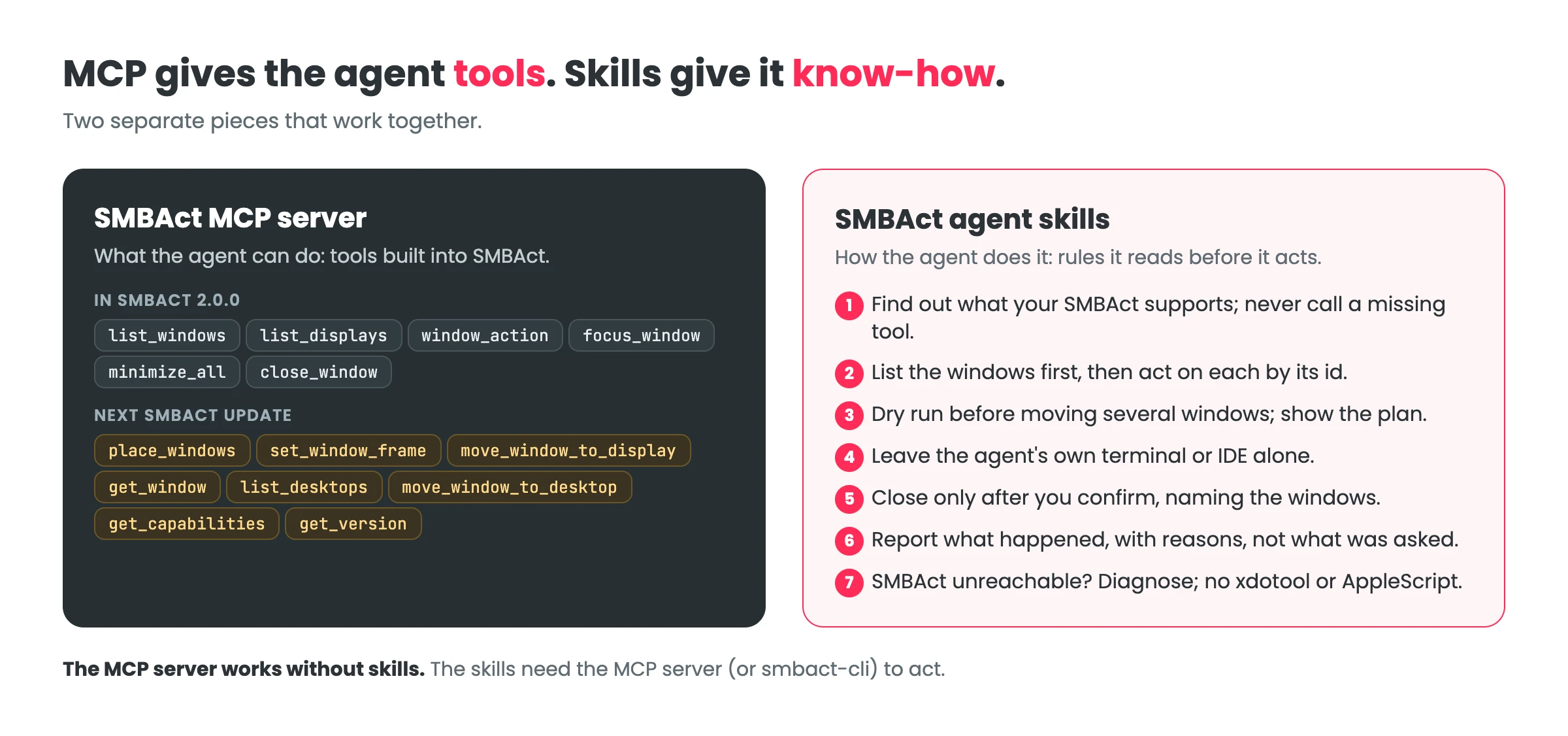
What is an agent skill?
A skill is a folder with a SKILL.md file: a name, a one-paragraph description of when to use it, and instructions, often with reference files next to it. The agent keeps only the descriptions in mind. When your request matches one (“put Chrome on the left half”), it reads that skill’s instructions and follows them.
A skill is not a program and not a server. It is the written know-how a careful colleague would bring: which tool to use for what, in what order, which mistakes to avoid and how to check the result.
Agent skills vs MCP: why you want both
MCP and skills answer different questions. The MCP server answers “what can the agent do?”: it exposes tools. A skill answers “how should it do it?”: it is written guidance the agent reads before it calls those tools. With only the MCP server connected, the agent sees a list of tool names with short descriptions and has to work out the rest. It might target "active" and move its own terminal, close an app without asking, call a tool your SMBAct does not have, or say “done” when a window refused the size. With the skills, it follows these rules every time:
- Detect, don’t assume. It checks which tools your SMBAct offers and uses only those, so it works with SMBAct 2.0.0 and with later versions.
- Look before acting. It lists the windows first and acts on each by its id. If several windows match “Terminal”, it asks you which one, by app, title and display.
- Dry run first. Before it moves more than one window to exact sizes, it asks SMBAct for a plan, shows it to you, then applies it (next SMBAct update).
- Hands off its own window. It never moves, resizes or closes the terminal or IDE it runs in unless you name it.
- Close only on your word. It closes only after you confirm, naming the windows, and it tells you that “close application” closes every window of that app. It never switches the close tool on for you.
- Report what happened. It reports the result SMBAct returns, including windows that kept a minimum size, rather than repeating what you asked.
- No workarounds. When SMBAct is not reachable, it diagnoses the setup instead of falling back to AppleScript,
xdotoolor simulated key presses. It never prints the MCP token or copies window titles into files.
Plugins vs skills in Claude Code: a Claude Code plugin is a package that can bundle skills, MCP server settings and other parts. The SMBAct plugin bundles these six skills and the MCP connection; the same skills also install on their own, for any agent.
The six skills
One router skill holds what every job needs; five job skills hold the recipes. Each recipe has an MCP form and an smbact-cli form.
| Skill | For |
|---|---|
smbact | The router: which skill to use, how to connect and detect the SMBAct version, the safety rules, error codes, files, and what SMBAct cannot do |
smbact-windows | One window, named layouts: halves, thirds, fourths, sixths, eighths, center, maximize, fullscreen, next display, focus, minimize all, close |
smbact-place | Exact geometry for one or many windows: pixels, percent, fractions, anchors, grids, gaps, margins, dry run, a result per window |
smbact-layouts | Whole arrangements: save the current layout under a name, list, restore and delete layouts |
smbact-desktops | macOS desktops (Spaces): send a window to another desktop, with or without following it |
smbact-doctor | Read-only diagnosis (is SMBAct running, is the server on, which version) and client setup for Claude Code, Codex, Cursor and Claude Desktop |
What you can ask
| You say | Skill | SMBAct |
|---|---|---|
| “Put Chrome on the left half and Slack on the right” | smbact-windows | 2.0.0 |
| “Send the terminal to the other monitor” | smbact-windows | 2.0.0 |
| “Bring the browser to the front”, “Minimize everything” | smbact-windows | 2.0.0 |
| “My client does not see SMBAct”, “How do I connect SMBAct to Cursor?” | smbact-doctor | 2.0.0 |
| “Make Safari 60 % wide on the left and Xcode the rest” | smbact-place | next update |
| “A 3×2 grid of my editor windows with 10 px gaps” | smbact-place | next update |
| “Save this arrangement as coding”, “Bring back my coding layout” | smbact-layouts | next update |
| “Send this window to Desktop 2 and go with it” | smbact-desktops | next update |
On SMBAct 2.0.0 the agent tells you when a request needs the update and, where it can, uses the closest named layout instead.
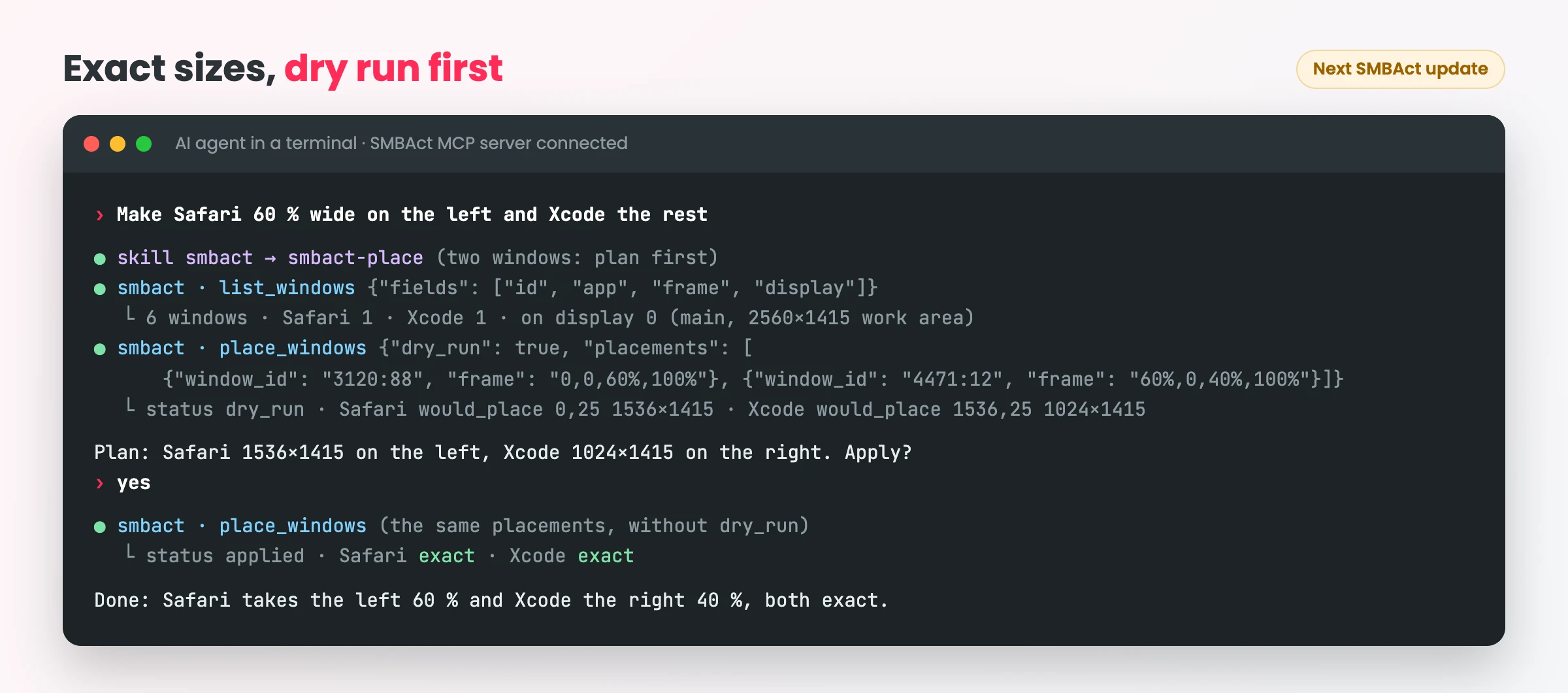
How smbact-place handles two windows: plan, your yes, apply, an honest result. This needs the next SMBAct update.
Install
You need SMBAct installed and running, and its MCP server turned on.
Claude Code
Install the plugin: the skills plus the MCP server connection, set up automatically on macOS.
/plugin marketplace add GigLaboCom/smbact-skills
/plugin install smbact@smbact
Cursor, OpenAI Codex, GitHub Copilot, Gemini CLI
Install the skills with the open skills installer, which supports these agents and others:
npx skills add GigLaboCom/smbact-skills
Or from a checkout: git clone https://github.com/GigLaboCom/smbact-skills.git, then scripts/install.sh --agents (to ~/.agents/skills, read by Codex, Cursor, Copilot and Gemini CLI), or scripts/install.sh for ~/.claude/skills.
With the skills alone, connect SMBAct’s MCP server to your client yourself: the snippets for each client are on the MCP server page and in SMBAct. On Windows and Linux the connection is HTTP with a token; smbact-cli for those systems is on the roadmap.
How the skills stay correct
- Generated references. The tool, action and placement tables the skills read are generated from SMBAct’s own source, not written by hand, so they match the app.
- A drift check fails when a reference is out of date or a skill names a tool or command SMBAct does not have.
- Version detection at the start of every session, so an older SMBAct gets only what it supports.
The skills are new (version 1, November 2026). Questions and issues: GitHub or SMBlob support.
FAQ
Do I need the skills to use SMBAct with Claude Code? No. Claude Code can use SMBAct’s MCP server on its own. The skills make it more careful and predictable: it lists windows first, does a dry run before moving several, leaves its own terminal alone and asks before closing anything.
Are the skills free? Yes. The skills and the plugin are open source under the MIT license. SMBAct itself is a paid app with a 14-day trial; MCP tool calls need the trial or a license.
Which agents can use them?
Any agent that reads Agent Skills (SKILL.md folders): Claude Code, OpenAI Codex, Cursor, GitHub Copilot, Gemini CLI and others. The Claude Code plugin also connects SMBAct’s MCP server on macOS.
Do the skills send my data anywhere? No. They are text instructions plus one small local script that stores saved layouts as files on your computer. They tell the agent never to print the MCP token or copy window titles into files.
Read next
- SMBAct MCP server: turn it on, connect a client, the tools and the guard rails.
- SMBAct for AI agents: the overview and a video of a real run.
- smbact-skills on GitHub · Download SMBAct
