Install SMBAct on macOS
SMBAct for macOS comes as a disk image (.dmg) for Apple Silicon and for Intel Macs. The app is signed with a Developer ID and notarized by Apple, so macOS opens it after one ordinary confirmation. To arrange other apps’ windows and react to hotkeys, SMBAct then needs two macOS permissions: Accessibility and Screen Recording. Screenshots: macOS 27.2 on Apple Silicon, SMBAct 2.0.0.
Short version
- Download the dmg for your Mac › drag SMBAct onto Applications › eject the dmg.
- Open SMBAct › Open in “…is an app downloaded from the internet”.
- Allow Accessibility and Screen Recording for SMBAct in System Settings › Privacy & Security.
- Paste your license key › Activate, or start the 14-day trial.
1. Download the dmg for your Mac
On the download page choose the macOS build for your processor: Apple Silicon (SMBAct-…-darwin-arm64.dmg) or Intel (SMBAct-…-darwin-x64.dmg). Not sure which Mac you have? Open the Apple menu › About This Mac: the Chip line says Apple M…, the Processor line says Intel.
2. Drag SMBAct to Applications
Open the downloaded dmg. A window shows SMBAct and a shortcut to your Applications folder:
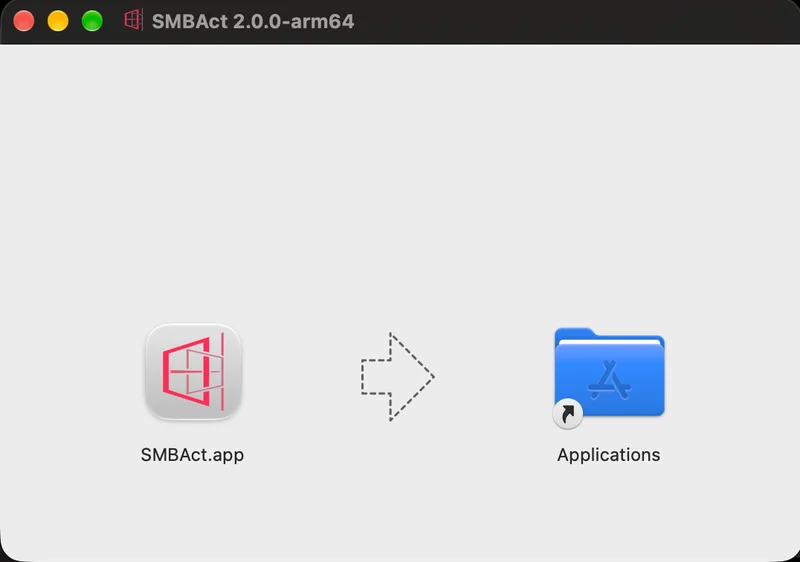
Drag SMBAct onto Applications. When the copy is done, eject the disk image (the eject button next to it in the Finder sidebar) — SMBAct runs from Applications, not from the dmg.
3. Open SMBAct
Open SMBAct from Applications or Launchpad. The first time, macOS asks whether you want to open an app downloaded from the internet and confirms that Apple checked it:
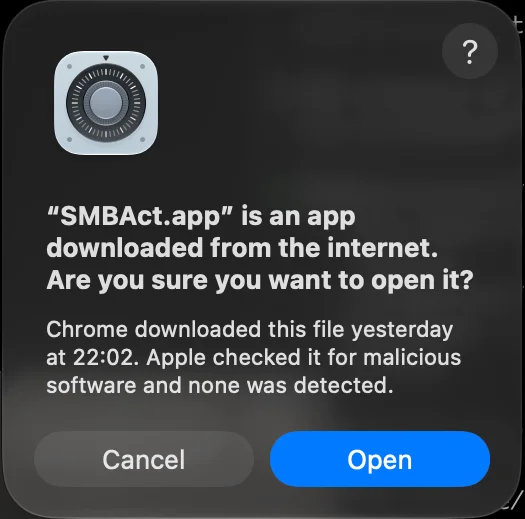
Click Open. macOS remembers the choice and does not ask again.
4. Allow Screen Recording and Accessibility
SMBAct asks macOS for two permissions. Both are granted in System Settings › Privacy & Security, and macOS shows a prompt with an Open System Settings button for each:
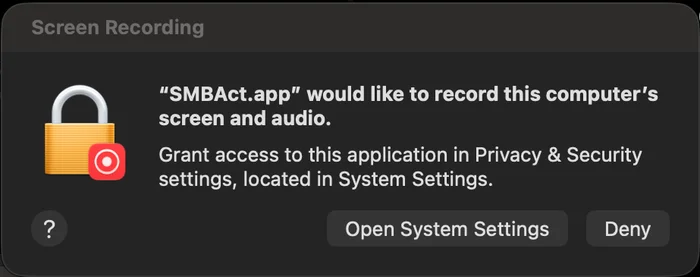
- Screen Recording (Privacy & Security › Screen & System Audio Recording): turn SMBAct on. SMBAct uses it to read the titles and previews of other apps’ windows for the switcher; it does not record anything. If macOS offers to quit and reopen SMBAct, let it.
- Accessibility (Privacy & Security › Accessibility; on macOS 27 the pane is called Device Control and Data Access): turn SMBAct on. This is what lets SMBAct move and resize other apps’ windows. If you missed the prompt, SMBAct shows a banner with an Open Accessibility settings button.
macOS lists the app as SMBAct only — there is no separate entry for its helper process.
5. Activate SMBAct or start the trial
Until SMBAct is activated, hotkeys are off and the Dashboard says so:
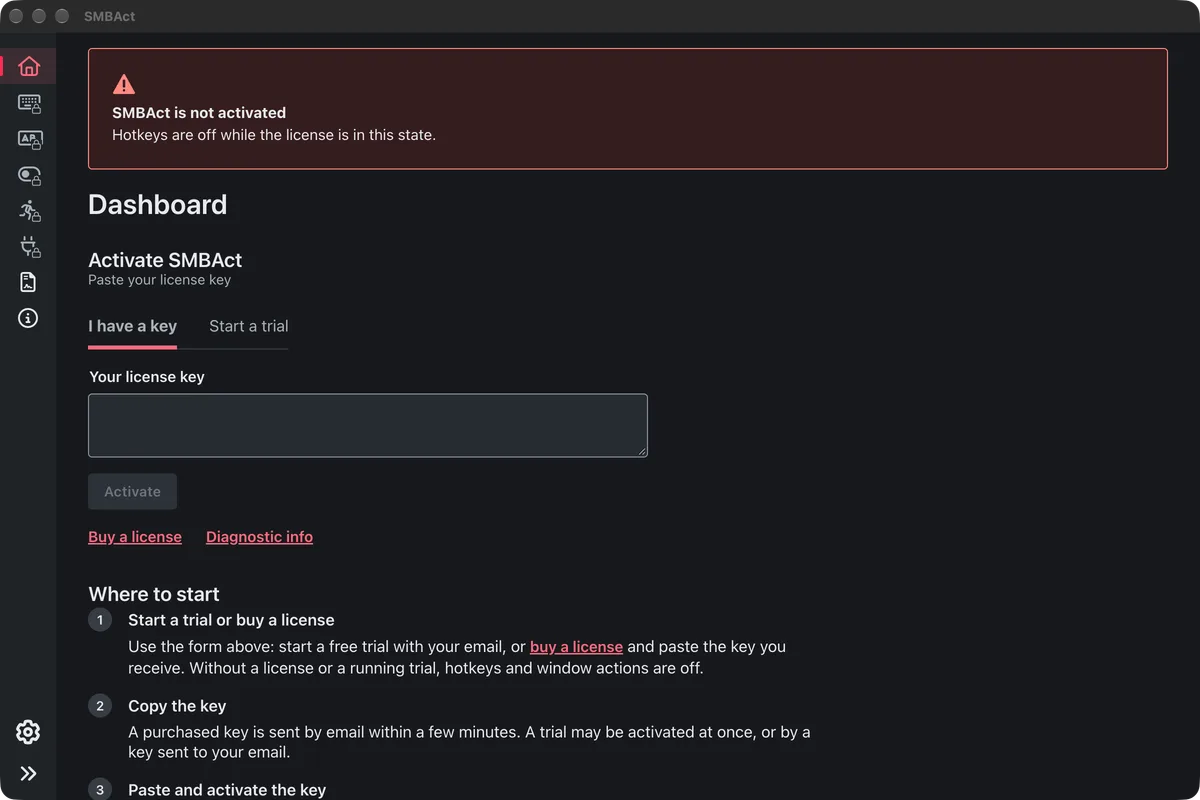
- I have a key: paste your license key and click Activate. Keys from the previous version are migrated automatically on first start.
- Start a trial: 14 days with full functionality, one trial per email. After the trial a license is required.
- Buy a license: licenses and downloads are managed in your GigLabo account. Prices are on the product page.
More on activation: Activation.
Good to know
- Updates: on macOS SMBAct updates itself from inside the app; there is no need to download the dmg again.
- Notifications are off until you turn on Desktop notifications in SMBAct’s settings; macOS asks for permission the first time one is shown.
- Start at login: if macOS needs your approval, SMBAct shows a warning with an Open Login Items button.
- The switch is on but windows don’t move? Turn SMBAct off and on again in the Accessibility list, or remove it with the – button and let SMBAct ask again. As a last resort, quit SMBAct and run
tccutil reset All com.smblob.SMBActin Terminal; SMBAct then asks for both permissions again.
Other platform guides
- Install SMBAct on Windows — getting past the Edge download warning and SmartScreen.
- SMBAct on Ubuntu GNOME (Wayland) — installing and updating the GNOME Shell extension.
- SMBAct on KDE Plasma (Wayland) — nothing to install, and what to do about Plasma’s own shortcuts.
- Download SMBAct · Documentation · Control windows with keyboard
