SMBAct on Ubuntu GNOME (Wayland)
How to enable all of SMBAct in a GNOME Wayland session — Ubuntu 25.10 and newer, including 26.04, where GNOME runs on Wayland only. It takes three clicks and one log-out. Screenshots: Ubuntu 26.04.1 with GNOME Shell 50.1, SMBAct 2.0.0 (English interface).
On KDE Plasma nothing needs to be installed — see SMBAct on KDE Plasma (Wayland).
Open source: SMBAct’s GNOME Shell extension is GPL-2.0-or-later. Source code and issues on GitHub: GigLaboCom/smbact-shell.
Why an extension is needed
Under Wayland an application cannot see other applications’ windows and cannot catch hotkeys while another app is focused. Without help from the desktop, SMBAct sees only X11 apps (XWayland). That is why SMBAct ships a small GNOME Shell extension: with it SMBAct sees and arranges every window, and its hotkeys work whatever window is focused.
SMBAct detects the session and the desktop by itself — there is nothing to configure. In an X11 session the extension is not needed. It is part of the SMBAct package, and its source code is open: github.com/GigLaboCom/smbact-shell.
Install: three steps and one log-out
1. Click “Install”
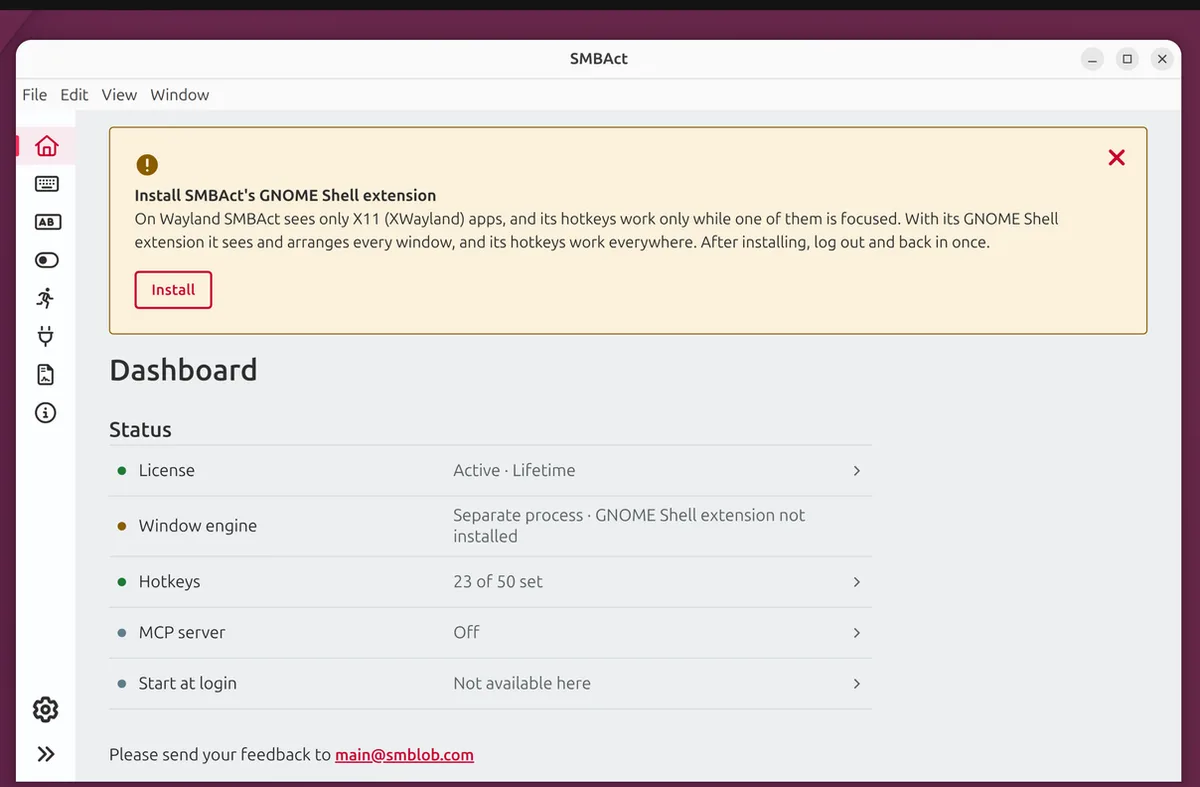
On first launch under GNOME Wayland the main window shows the banner “Install SMBAct’s GNOME Shell extension”, and the dashboard’s Window engine line says “GNOME Shell extension not installed”. Click Install: SMBAct installs the extension for your user and enables it for your next login.
2. Save your work and click “Log out…”
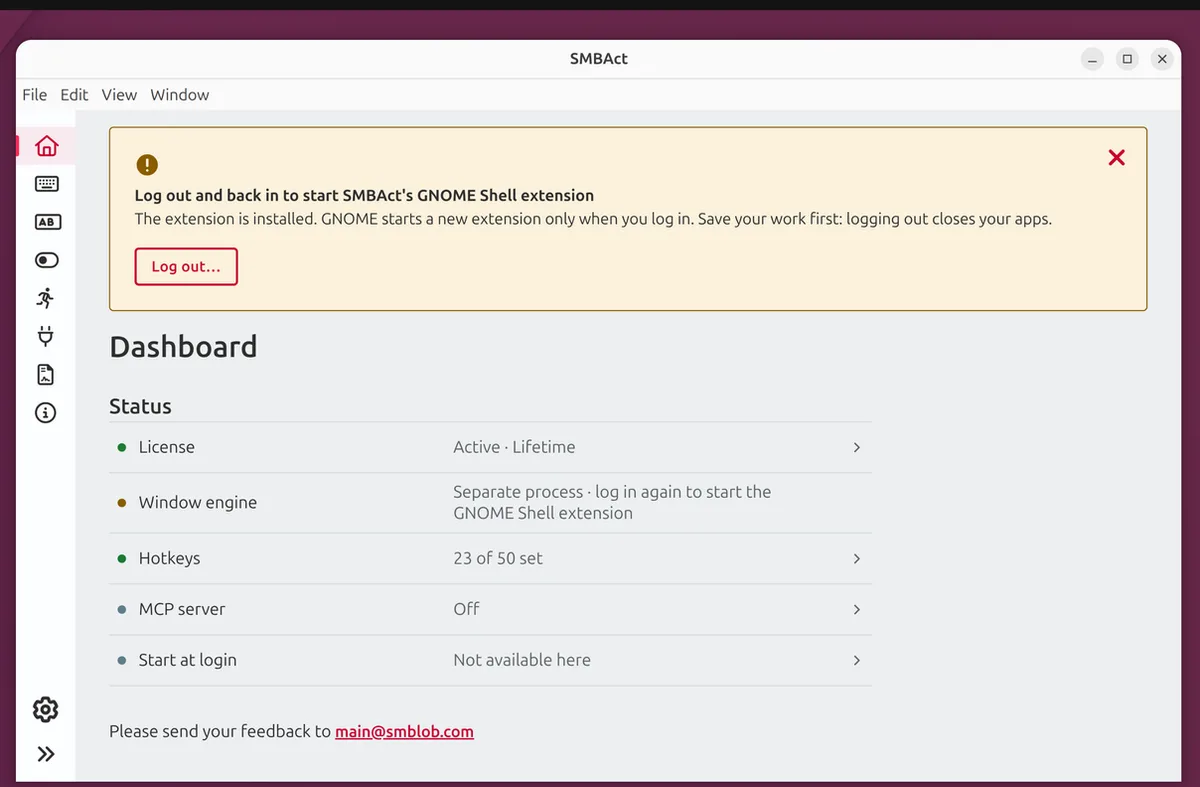
GNOME starts new extensions only at login, so one log-out and log-in is needed. Save your work first — applications close when you log out. Then click Log out…. You can also skip it and log out later from the system menu: the extension starts at your next login.
3. Confirm in the GNOME dialog and log back in
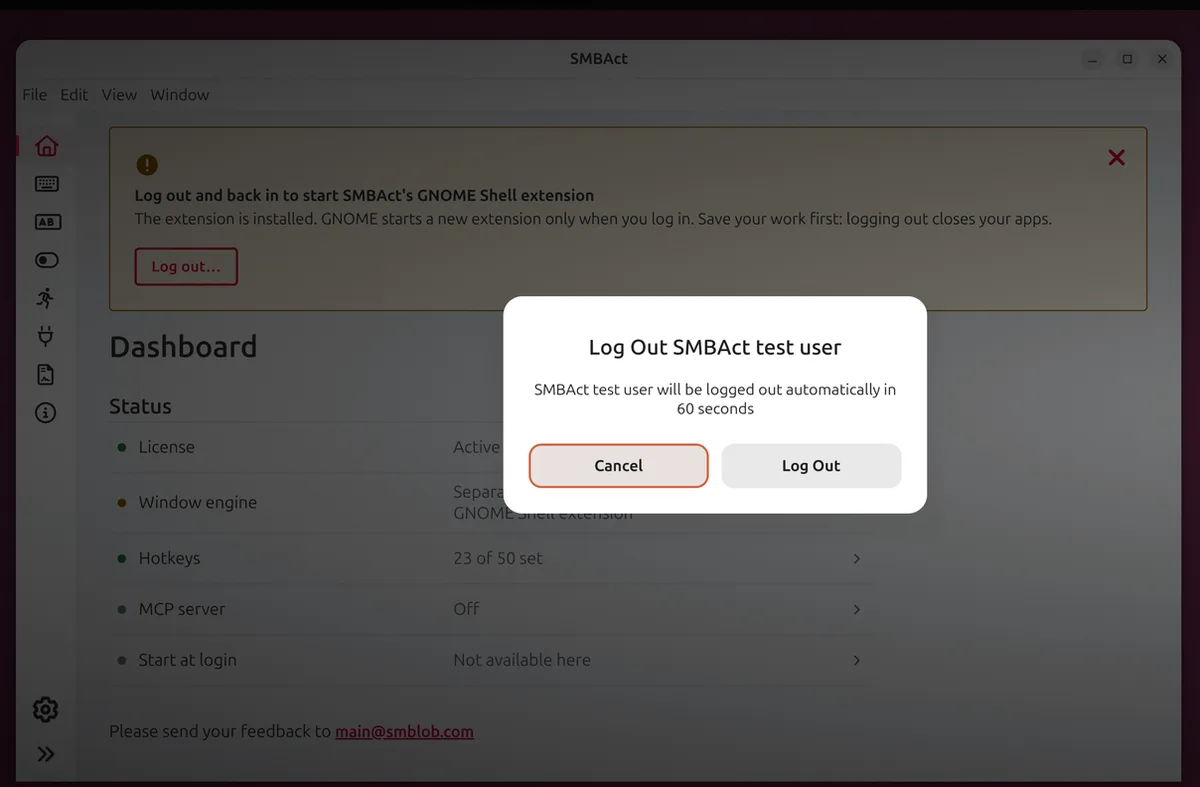
This is the regular GNOME dialog. Log Out logs out immediately; if you press nothing, GNOME logs out by itself after 60 seconds. Cancel keeps you logged in and the banner stays. Log back in and start SMBAct if it does not start at login.
Done
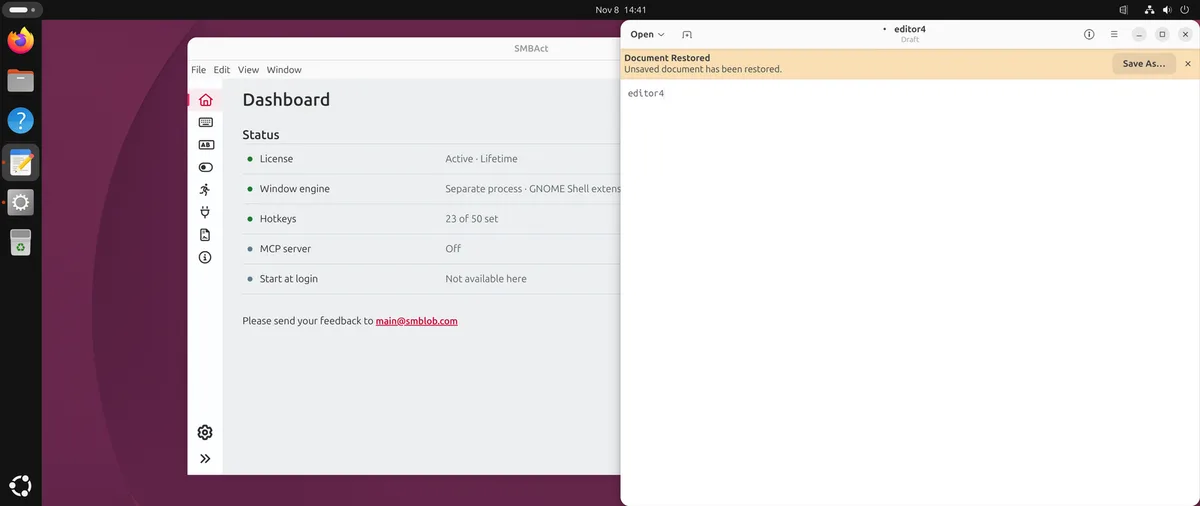
The banner is gone and the Window engine line reads “Separate process · GNOME Shell extension” with a green dot. In the screenshot, Text Editor (a native Wayland app) was sent to the right half of the screen with Ctrl + Super + → while it was focused.
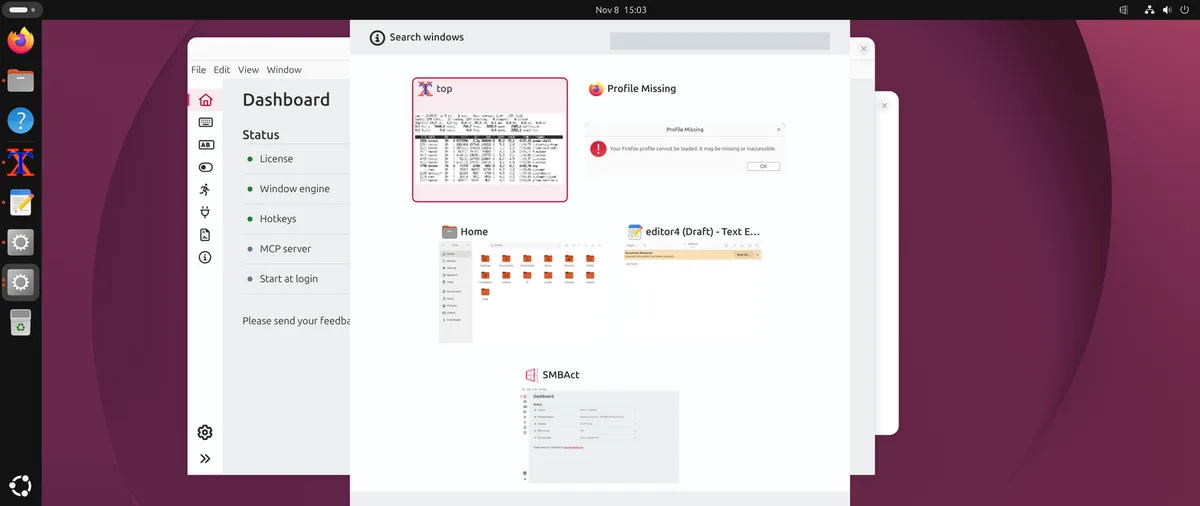
The switcher (Ctrl + Alt + X) opens whatever window is focused and shows all windows with previews. Previews of Wayland windows come from the extension: they appear instantly from a cache and refresh within a fraction of a second if the window changed. X11 windows are captured live.
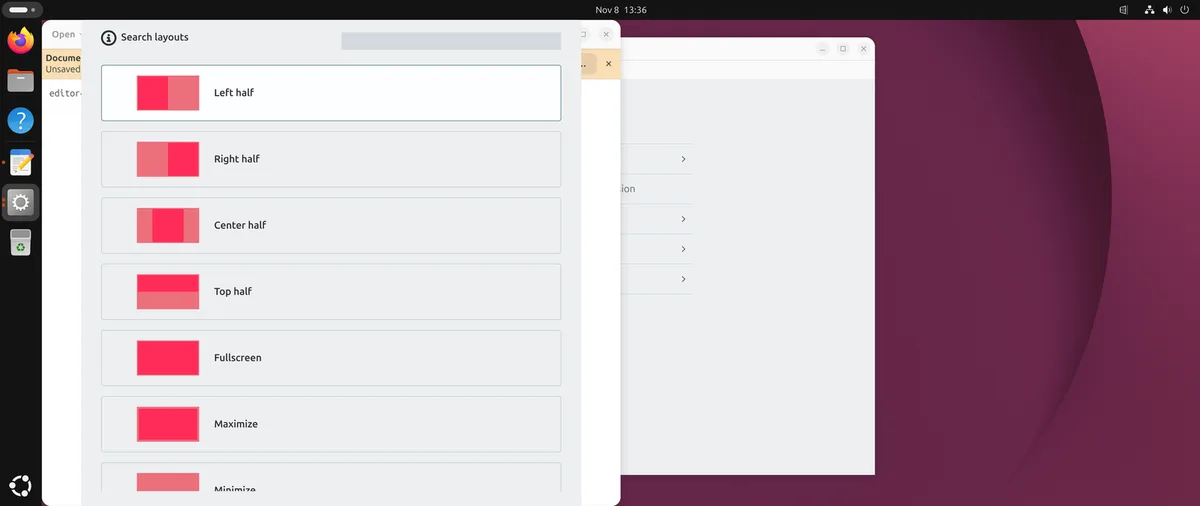
The actions popup (Ctrl + Alt + Z) appears centred on the window the action will apply to.
Updating the extension
When a new SMBAct version brings a new version of the extension, SMBAct offers to update it. The old version keeps working until you log in again.
1. Click “Update”
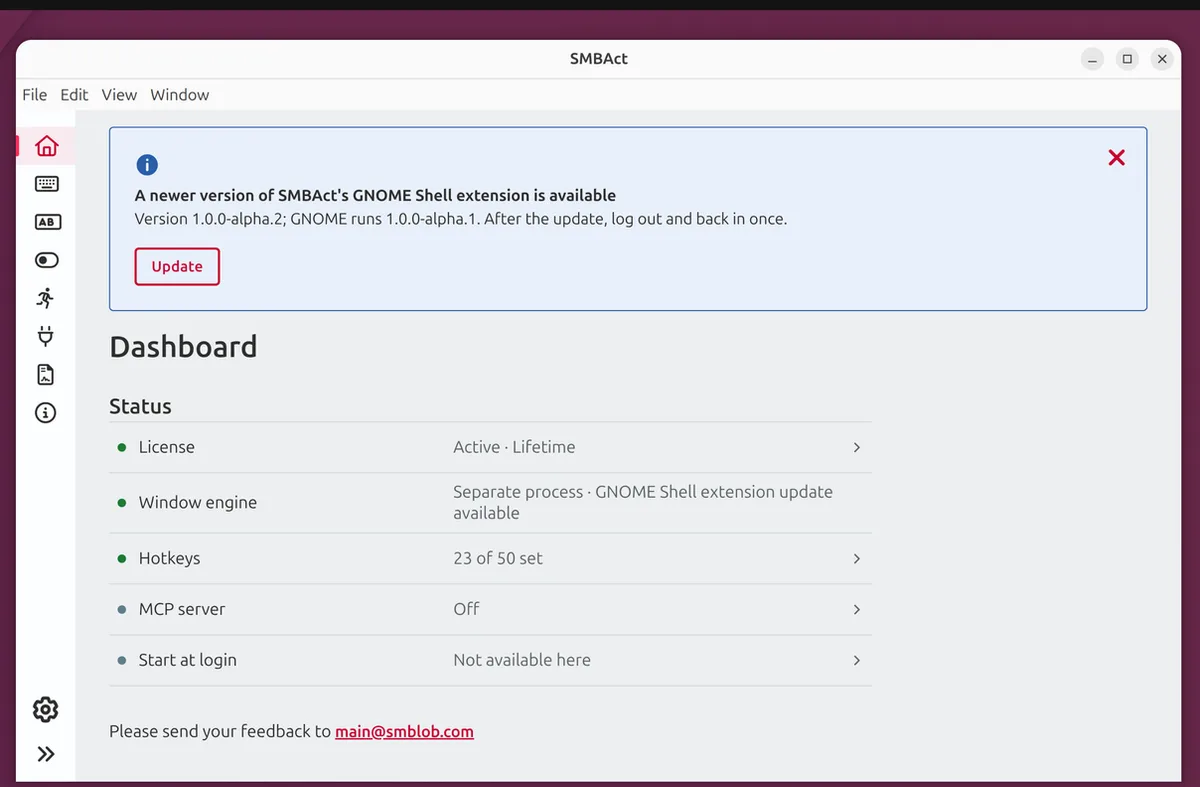
The banner names both versions: the one SMBAct brought and the one that is running. The dashboard says “GNOME Shell extension update available”.
2. Log back in when convenient
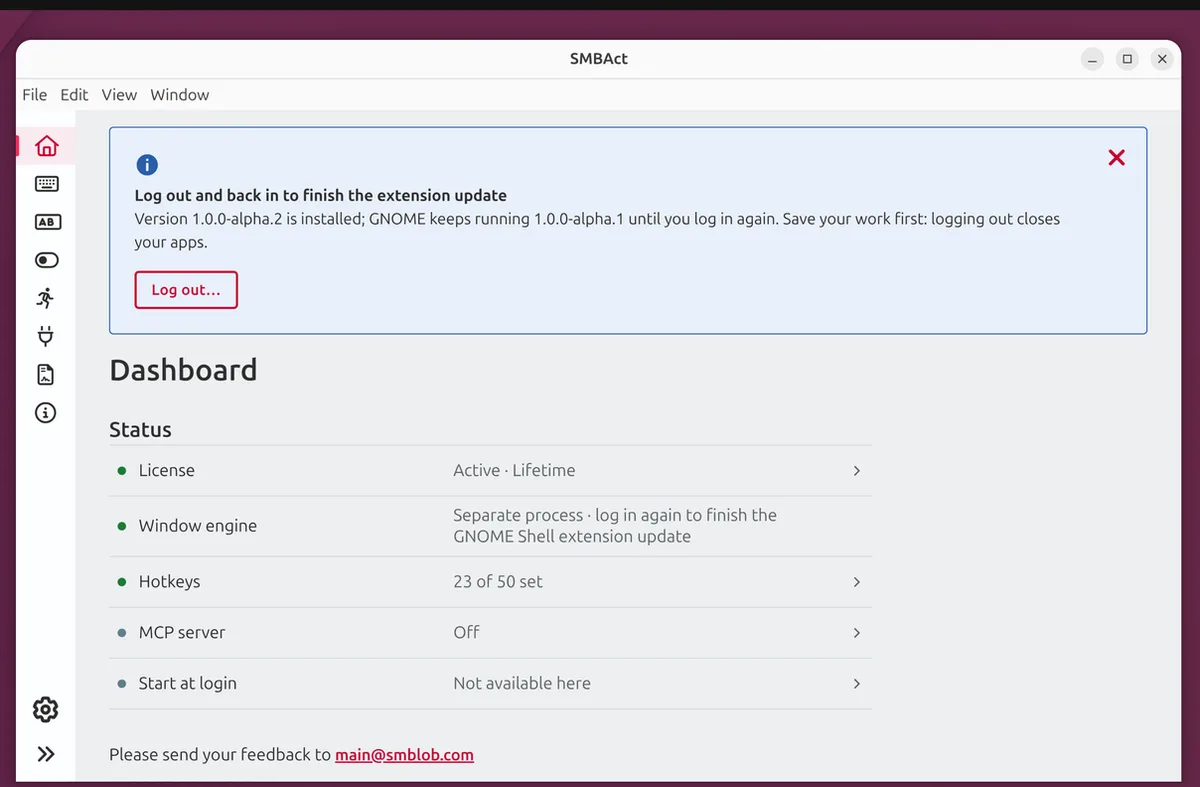
The new version is already on disk. Click Log out… or log out later yourself: after login GNOME starts the new version and the banner disappears. Until then everything runs on the old one.
If the extension was turned off
The extension can be turned off in the Extensions app (or Extension Manager), or all extensions can be turned off at once. GNOME also turns all extensions off by itself if the session crashed within the first minute after login. SMBAct notices this immediately.
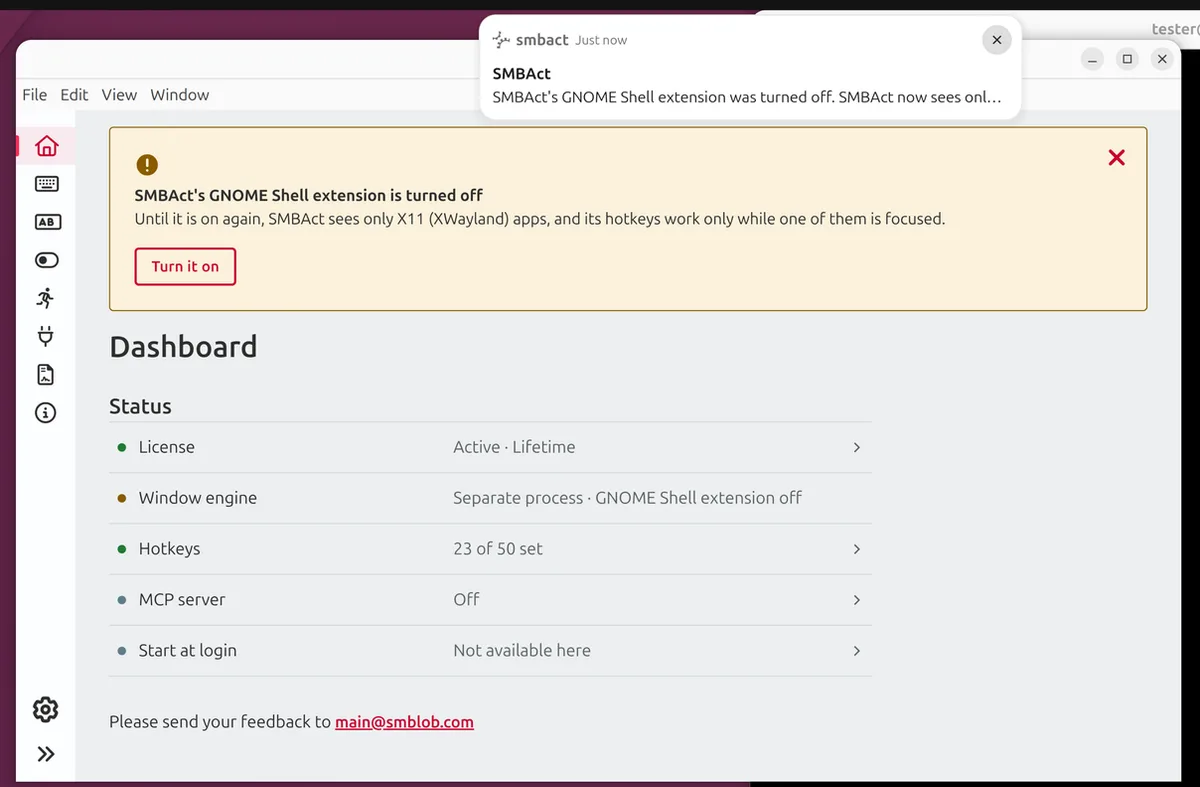
You get one notification, and the main window shows a banner with a Turn it on button. While the extension is off, SMBAct works as it would without it: it sees only X11 apps, and hotkeys fire only while an X11 window is focused. The notification comes only if the extension was turned off while SMBAct was running, and it respects the Desktop notifications and Play sound settings.
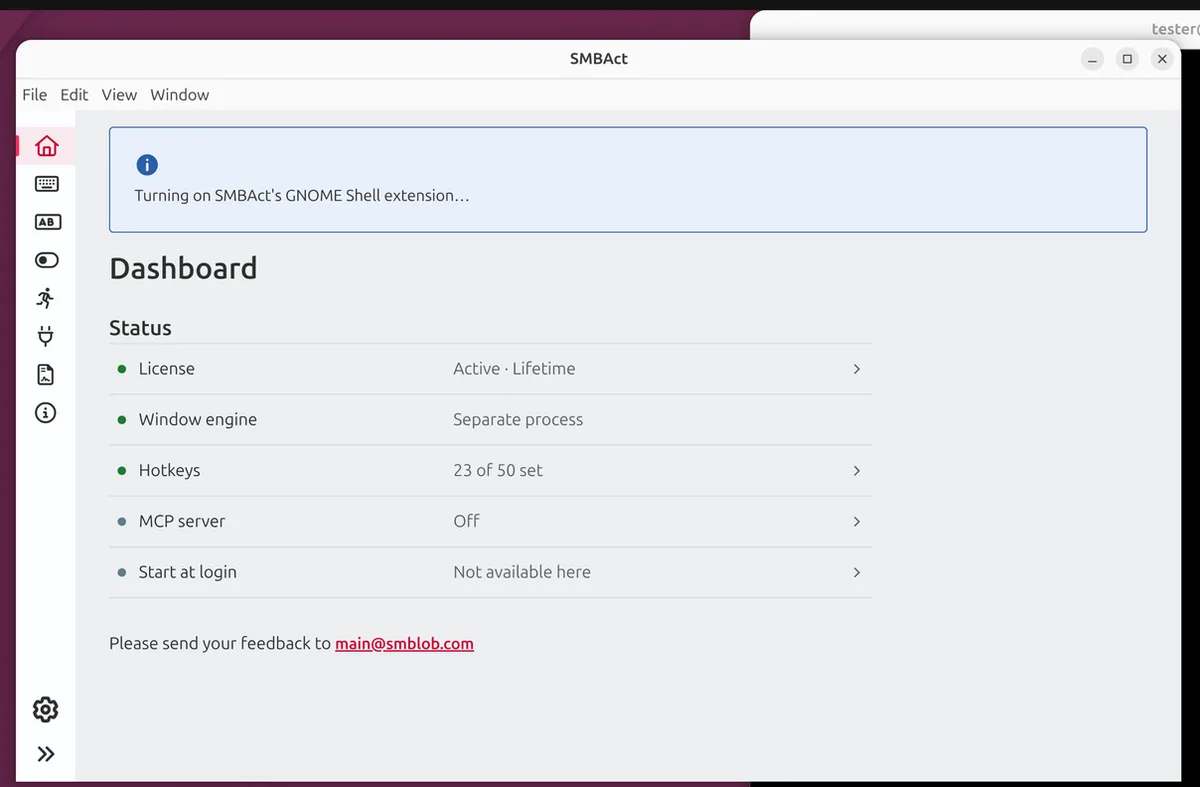
After the click the extension is turned on right away — no new login needed. SMBAct takes a couple of seconds to switch over to it.
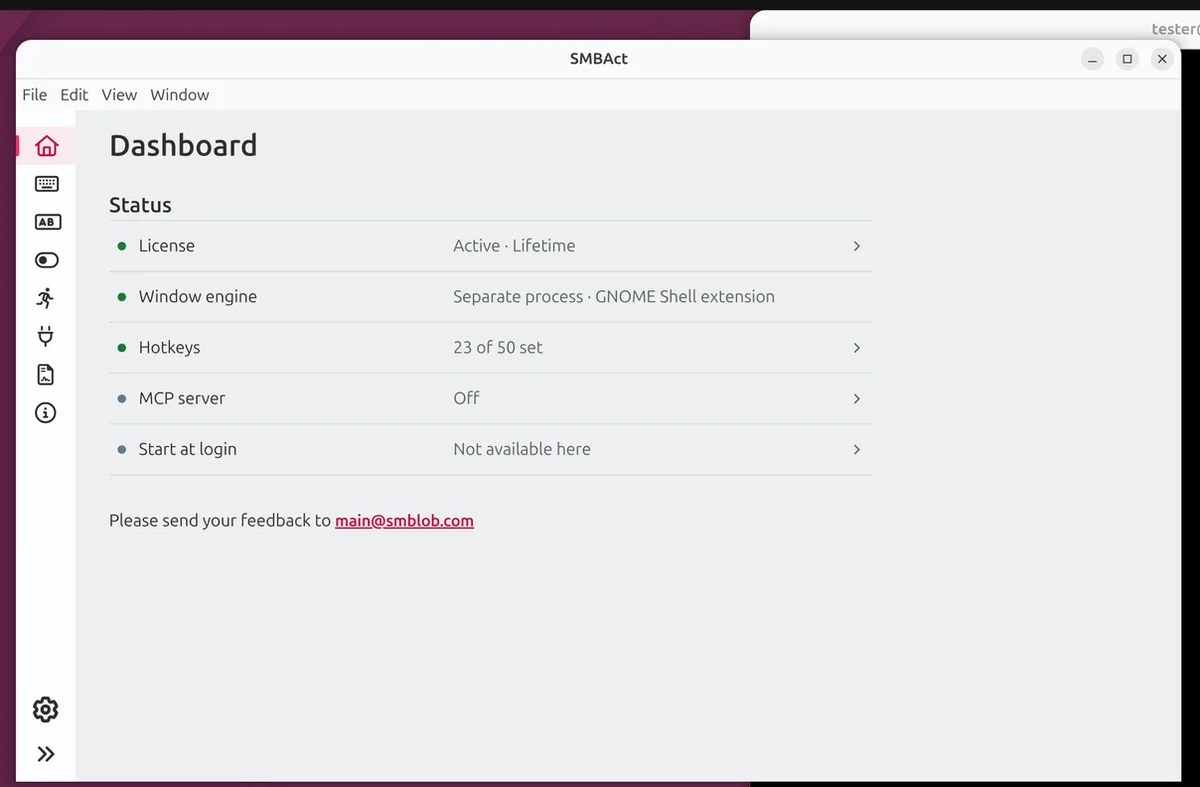
Everything works again.
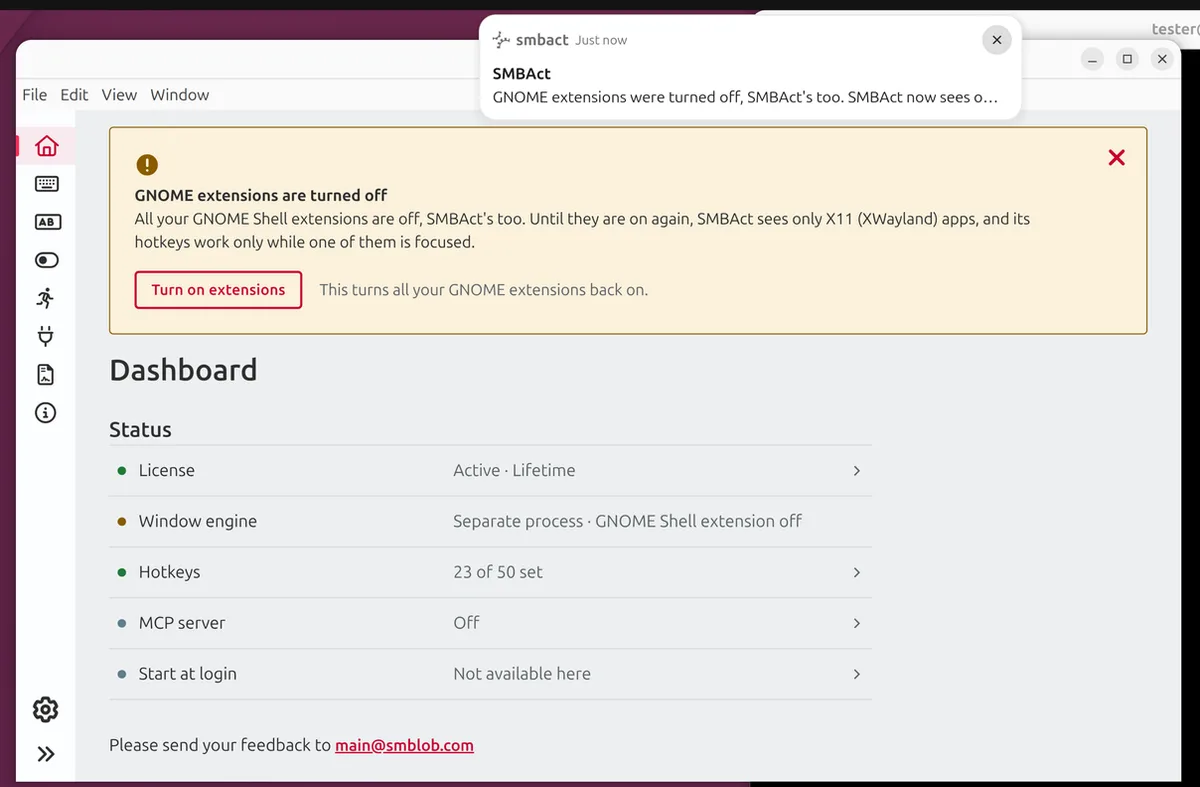
If all extensions are turned off, the button is called Turn on extensions. It turns on all your GNOME extensions, not only SMBAct’s, and the note under it says so.
If the extension stopped with an error, the banner suggests logging out and back in and shows GNOME’s message.
Good to know
- On the lock screen SMBAct hotkeys do not fire: GNOME turns extensions off while the screen is locked. After unlocking SMBAct picks everything up by itself, without notifications.
- If an SMBAct hotkey matches a GNOME shortcut (for example Super + ↑), GNOME keeps the shortcut for itself. SMBAct marks that hotkey field with a warning.
- The extension is installed to
~/.local/share/gnome-shell/extensions/[email protected]. To remove it by hand rungnome-extensions uninstall [email protected]; SMBAct then shows the “Install” banner again. - To check that the extension is running:
gnome-extensions info [email protected](the lineState: ACTIVE).
Other platform guides
- SMBAct desktop plugins on GitHub — source code and issues of the GNOME Shell extension and the KWin script.
- Install SMBAct on macOS — the dmg, the first open and the Accessibility and Screen Recording permissions.
- SMBAct on KDE Plasma (Wayland) — nothing to install, and what to do about Plasma’s own shortcuts.
- Install SMBAct on Windows — getting past the Edge download warning and SmartScreen.
- Download SMBAct · Documentation · Control windows with keyboard
