Install SMBAct on Windows
The Windows builds of SMBAct (.exe and .msi, x64) are not yet signed with a Microsoft code-signing certificate, so Microsoft Defender SmartScreen is wary of the downloaded file. You will see up to two warnings:
- In the browser, on download: Edge warns that the file “isn’t commonly downloaded”.
- On first launch: the blue “Windows protected your PC” window.
Both disappear once the build is signed or has built enough reputation. Until then, here is how to get through them. Screenshots: Windows 10 22H2, Microsoft Edge, SMBAct 2.0.0 downloaded from the download page.
Short version
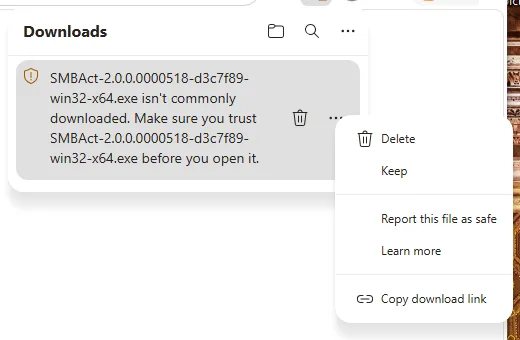
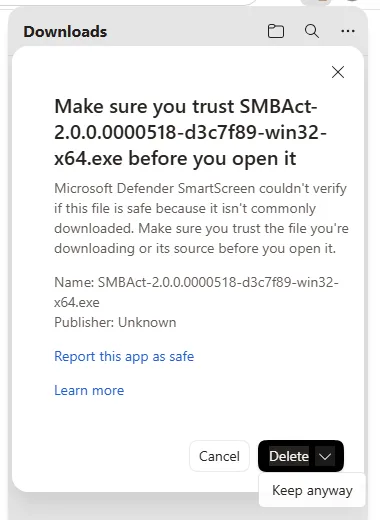
- In Edge: … next to the file › Keep › the arrow next to Delete › Keep anyway.
- On first launch, in “Windows protected your PC”: More info › Run anyway.
1. Downloading in Edge
After the download Edge does not show the file as finished. The Downloads panel says that the file “isn’t commonly downloaded. Make sure you trust it before you open it.”
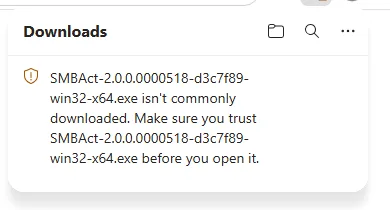
Hover over the line, click … (More actions), then Keep.
Edge asks again: “Microsoft Defender SmartScreen couldn’t verify if this file is safe because it isn’t commonly downloaded… Publisher: Unknown”.
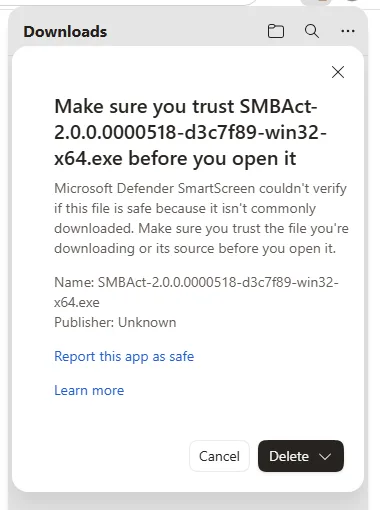
The main button here is Delete. Keeping the file is hidden under the arrow next to it: click the arrow, then Keep anyway.
Now the file is downloaded and has an Open file link.
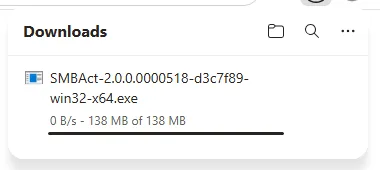
Chrome and Firefox may show a similar warning of their own, or none at all. The SmartScreen window on launch (next step) appears anyway: Windows raises it, not the browser.
2. First launch: “Windows protected your PC”
On first launch — from Edge’s Open file, by double-clicking in Explorer, or from the .msi — Windows shows the SmartScreen window: “Microsoft Defender SmartScreen prevented an unrecognised app from starting.” The only button, Don’t run, does not start the app.
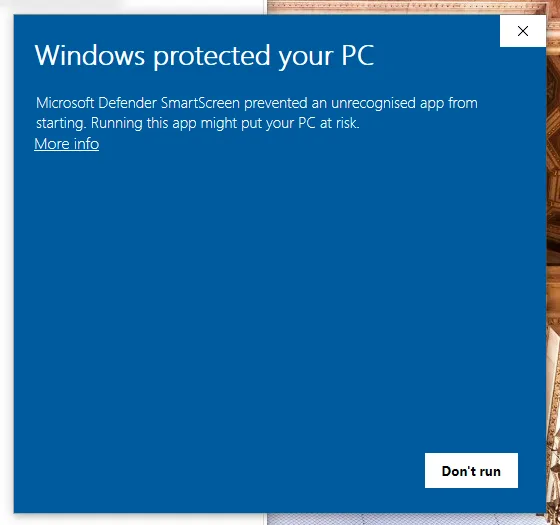
Click the More info link under the text. The window shows the file name and Publisher: Unknown publisher, and a second button appears: Run anyway.
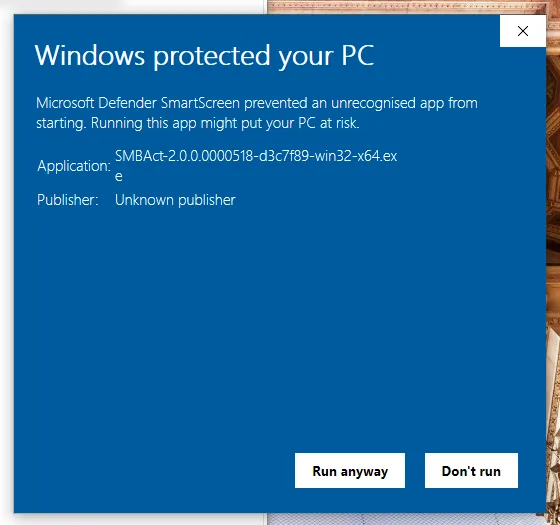
Run anyway starts SMBAct. Windows remembers the choice for this file, and the window does not come back on later launches.
Good to know
- SmartScreen checks files that the browser marked as downloaded from the internet. Another way to remove the mark by hand: right-click the file › Properties › tick Unblock › OK.
- Windows Firewall does not ask anything about SMBAct: it listens only on
127.0.0.1(its local MCP server), and loopback connections are not filtered. - macOS shows no such warnings: the app is signed and notarized by Apple — see Install SMBAct on macOS. On Linux the AppImage only needs execute permission (
chmod +x). - After the first start, activate SMBAct or start the 14-day trial on the License page — see Activation.
Other platform guides
- Install SMBAct on macOS — the dmg, the first open and the Accessibility and Screen Recording permissions.
- SMBAct on Ubuntu GNOME (Wayland) — installing and updating the GNOME Shell extension.
- SMBAct on KDE Plasma (Wayland) — nothing to install, and what to do about Plasma’s own shortcuts.
- Download SMBAct · Documentation · Control windows with keyboard
