Move a window to another monitor
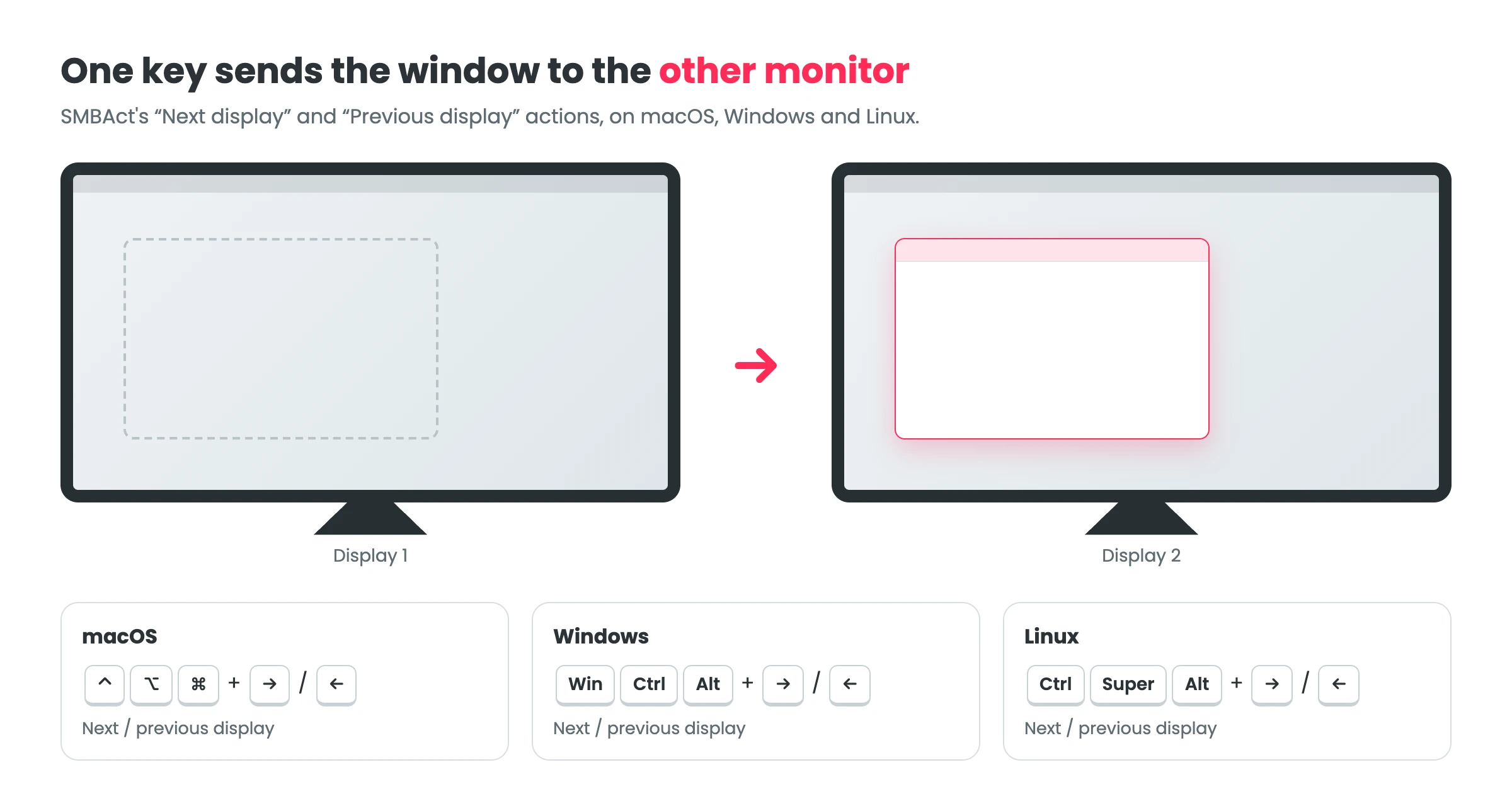
Dragging a window across two or three monitors gets old quickly. Every system can do it from the keyboard, but each one differently, and some not at all. Here are the built-in shortcuts, and SMBAct’s Next display and Previous display actions: one key combination that works the same on Windows, macOS and Linux.
Built-in shortcuts
| System | Move the focused window to the other monitor |
|---|---|
| Windows 10 and 11 | Win + Shift + ← / → |
| macOS | No system-wide shortcut: drag the window, or use an app such as SMBAct |
| GNOME (Ubuntu, Fedora) | Super + Shift + ← / → (also ↑ / ↓ for monitors above and below) |
| KDE Plasma | The KWin actions “Window to Next Screen” and “Window to Previous Screen”, under System Settings › Keyboard › Shortcuts › KWin |
With SMBAct: one key on every system
SMBAct is a window manager and switcher for Windows, macOS and Linux. Its Next display and Previous display actions send the focused window to the neighbouring monitor:
| System | Next display | Previous display |
|---|---|---|
| macOS | ⌃ Control + ⌥ Option + ⌘ Command + → | ⌃ Control + ⌥ Option + ⌘ Command + ← |
| Windows | Win + Ctrl + Alt + → | Win + Ctrl + Alt + ← |
| Linux | Ctrl + Super + Alt + → | Ctrl + Super + Alt + ← |
These are the defaults; change them on SMBAct’s Hotkeys setup page.
What the window does on the other monitor:
- macOS and Windows: it keeps its place and size relative to the screen, so a window in the left half of a 4K monitor lands in the left half of a laptop screen.
- Full screen: SMBAct restores the window, moves it and makes it full screen again on the other display.
- Linux: SMBAct centres the window on the other monitor. It works on X11 and on GNOME and KDE Plasma under Wayland, where SMBAct sees every window through its GNOME Shell extension or KWin script.
Then place it on the new monitor with the same keyboard: left half, two thirds, a quarter, maximize. SMBAct has dozens of such actions. Control windows with keyboard shows them, and the switcher finds any window by typing part of its name.
Without the keyboard: let an AI agent do it
SMBAct’s local MCP server offers the same actions to AI agents such as Claude Code, Codex or Cursor. Say “send the terminal to the other monitor” and the agent calls window_action with next-display on that window. Scripts can do the same over HTTP; see moving windows by script on Wayland.
FAQ
What is the shortcut to move a window to another monitor on Windows? Windows has Win + Shift + ← / → built in. SMBAct adds Win + Ctrl + Alt + ← / →, which work the same way on macOS and Linux and can be changed.
Is there a shortcut to move a window between monitors on a Mac? macOS has no system-wide keyboard shortcut for it. With SMBAct, ⌃ + ⌥ + ⌘ + → sends the focused window to the next display and ← to the previous one.
What happens to a full-screen window? SMBAct restores it, moves it to the other display and makes it full screen again there.
Can I change the shortcut? Yes. Both actions, Next display and Previous display, are on SMBAct’s Hotkeys setup page and take any key combination.
Try it
SMBAct has a 14-day trial with every feature, then a one-time license from €14.99. Download SMBAct for Windows, macOS or Linux · Documentation
